Tenote
Building Tenote, a tiny Mac notes app that cost ten cents in AI tokens, and why it does less on purpose.
(Just want to download it? See the app page.)
I built the perfect notes app for ten cents.
I love Apple Notes. I only looked for a replacement because it kept crashing. I wanted something simple. I wanted a tool that worked like Apple Notes in its golden age.
So I built one for a YouTube recording, where I wanted to see what I could build for ten cents using DeepSeek V4 Flash 0731. The cost is why I named it Tenote (say "ten-note").
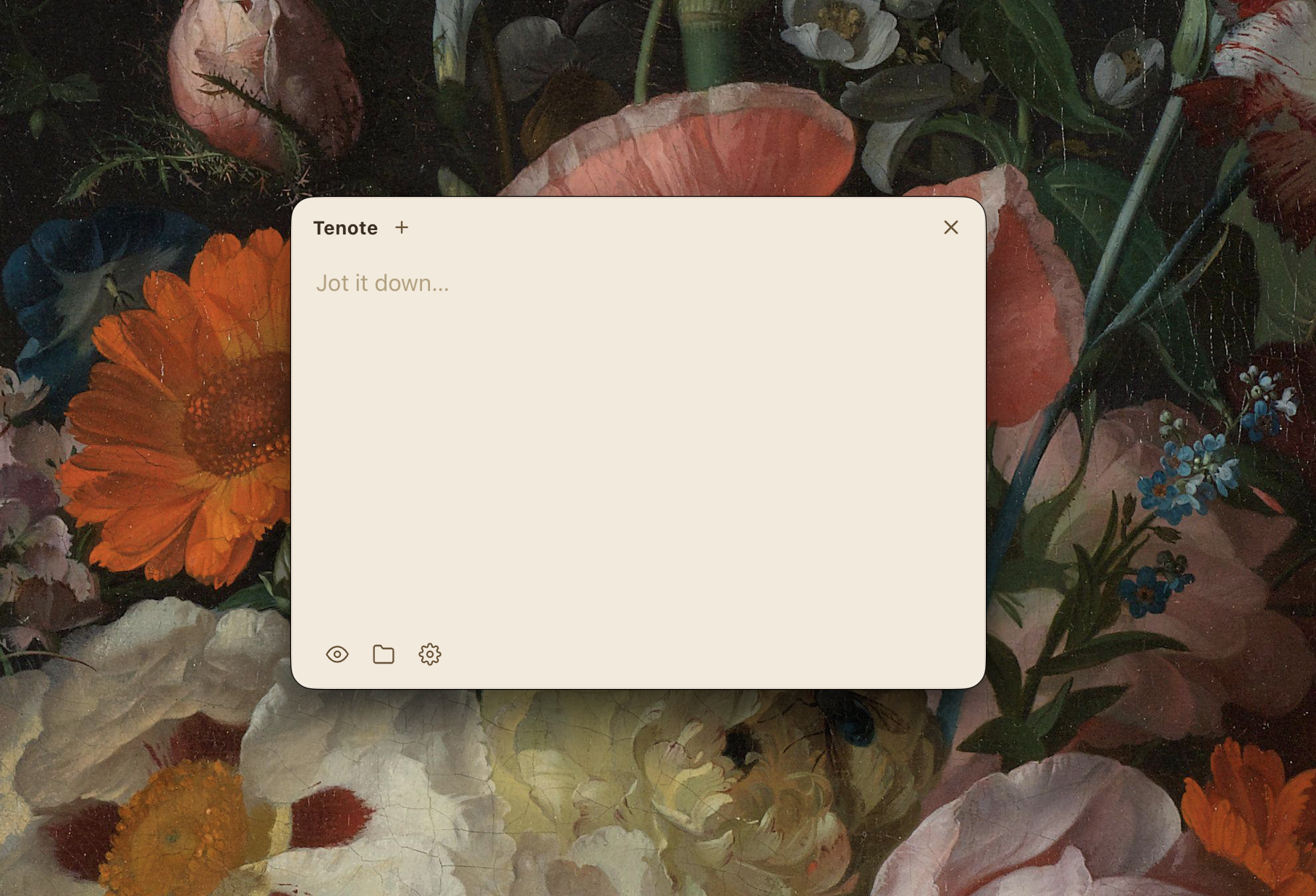
The workflow is simple. I press Option+Period anywhere on macOS. A small floating card appears. I type my thought, and the app saves it. There is no "Save" button and no folder hierarchy to manage.
Less is more
I built Tenote on a simple philosophy: less is more.
Apple Notes crashed too often for me. I wanted a replacement with fewer moving parts, so I stripped everything away. Tenote has no account system. It has no cloud database. It doesn't even have its own sync engine. Fewer parts mean fewer things to break.
Your notes are plain Markdown files stored in ~/Documents/Tenote Notes, and any text editor can read them. If you want them in the cloud, just move or symlink the folder into Google Drive, Dropbox, or iCloud Drive. It's free, and you only add it if you want it.
What Tenote does
Tenote stays hidden in your menu bar. There is no Dock icon to clutter your screen. You press one hotkey to open or close the note card from inside any other app.
The app auto-saves as you type, and every note gets a timestamp. Bold, italic, and images render inline right in the composer, so there is no separate preview mode to manage. Paste or drag an image into a note and it appears in place. Dragging in any other kind of file inserts its path.
#tags become little chips at the bottom. A strip shows your last three notes, with a "+N more" card for the rest. The all-notes view has a Data Files button that opens your notes folder in Finder. There are five themes, and the window resizes when you drag its edges. On first run, a welcome card draws the hotkey as little keyboard keys so you can't miss it.
Getting started
As of version 1.3.4, Tenote is signed and notarized with an Apple Developer ID certificate. For most people the install is now a plain drag-and-drop.
- Download Tenote for Mac (Apple Silicon), open the dmg, and drag Tenote into your Applications folder.
- Press Option+Period anywhere. The note card appears.
- Open settings (the gear icon) and turn on launch at login, so the hotkey is ready every time you start your Mac.
- (Optional) To sync your notes, move or symlink the
~/Documents/Tenote Notesfolder into Google Drive, Dropbox, or iCloud Drive. If you're not sure how, just ask your local agent.
Open and free
Tenote is free forever. It is licensed under the MIT License, and the source code is at github.com/noemit/tenote. Bug reports and ideas are welcome there.
An iPhone app is coming soon for those that want to sync with Google Drive. Until then, your notes are just text files, so they will be easy to carry anywhere.